
Warehouse Income Window
The Inventory Income List window in Inventories1A constitutes the historical and consolidated record of all transactions that increase the available stock in the company's warehouses. Designed as a query and audit module, this interface centralizes the complete traceability of each merchandise entry, regardless of its origin. From here, users can have a unified and reliable view of everything that has physically entered the inventory, allowing for volume, cost, and supply trend analysis.
Important: This window in Inventories1A is read-only. It shows the final result of processes managed in other modules. If a document appears here, it means that the product has been effectively received, counted, and its entry has been confirmed in the system, increasing the available stock in an irreversible manner.
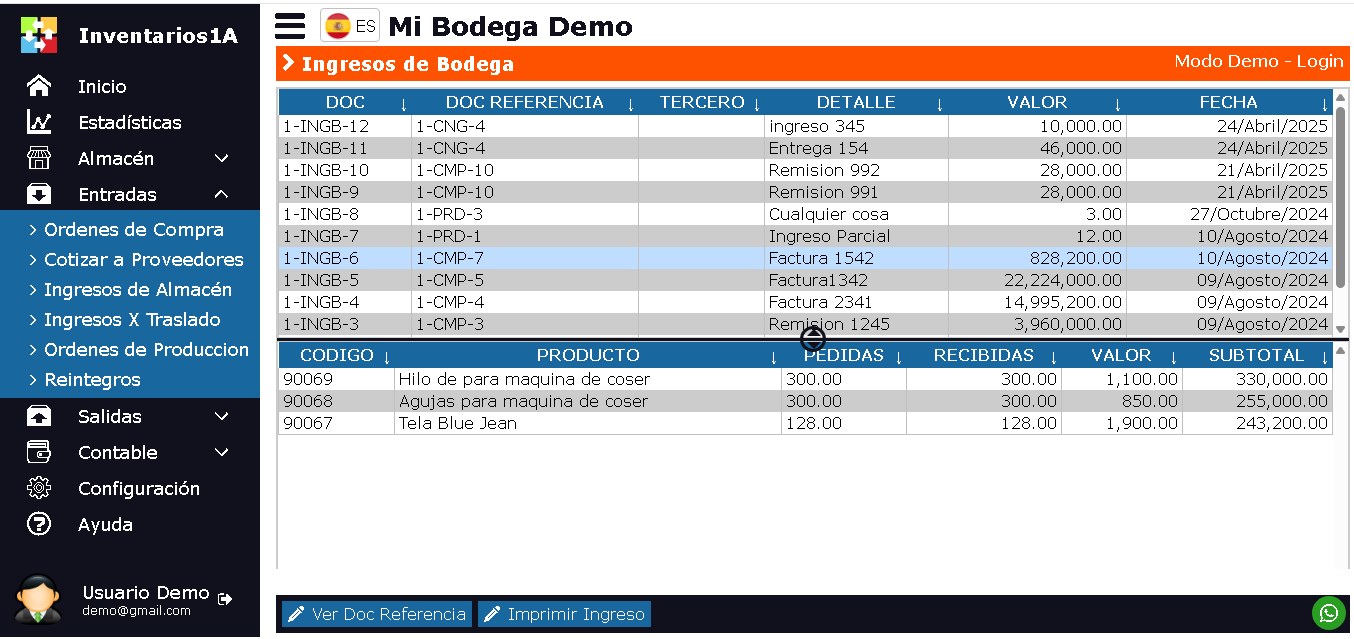
The Inventory Income List window is designed to show all validated entry transactions. This window is divided into 2 sections:
- Upper section: Shows a consolidated list of all Incomes, with key information such as: Income document number, origin type (Purchase Order, Consignment Return, Internal Transfer, Production Order, Positive Adjustment, etc.), supplier or origin warehouse, destination warehouse, entry date, and total value (when applicable).
- Lower section: Shows the detail of the items that make up the selected entry in the upper section. It includes: Product code, name, entered quantity, entry cost or unit value, batch/series (if applicable), and location within the warehouse.
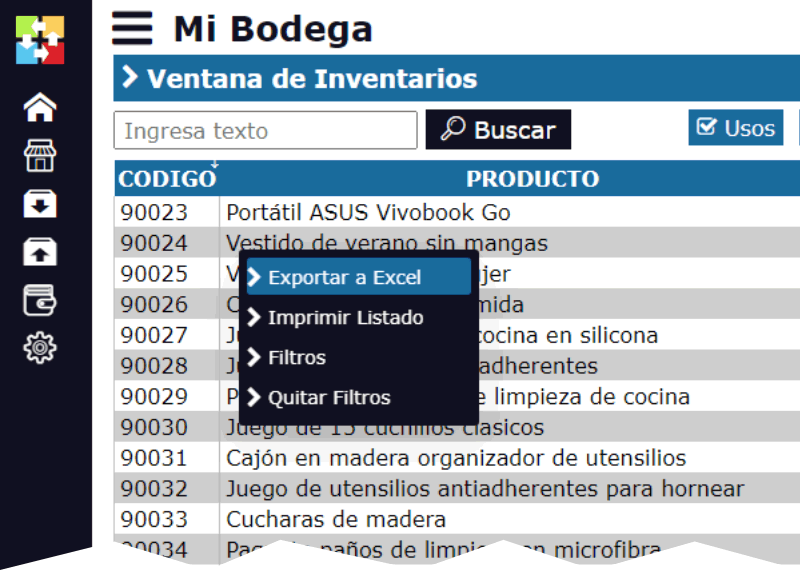
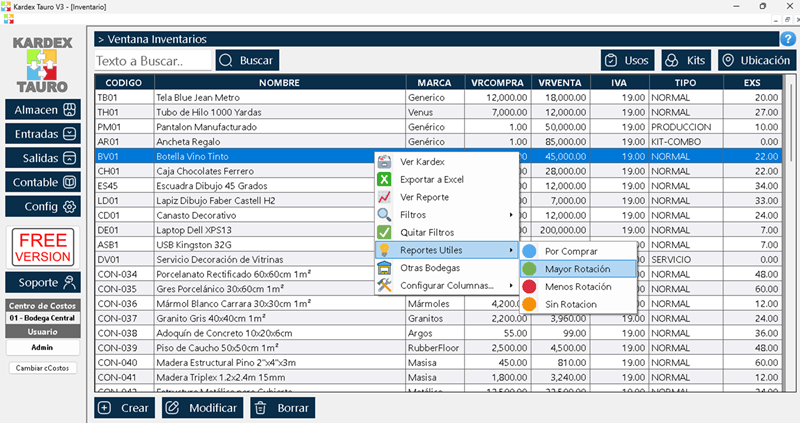
By right-clicking on the upper section, a pop-up menu appears with the following query and report options:
- Export to Excel: This option generates a downloadable Excel file with the historical list of entries, ideal for purchase analysis, average cost calculations, or inventory audits.
- Print: Allows printing the list or a specific detail of an entry for physical archiving.
- Filters: This is a powerful tool for segmenting information. It allows showing only the entries according to specific criteria such as: Date range, destination warehouse, origin document type (e.g., only view entries by Purchase Orders), specific supplier, specific product, or batch number.
- Remove Filters: Restores the view to show all records.
Note on Functionality: Since this window shows the result of transactions already finalized in other modules, it does NOT include the standard buttons "New", "View/Edit" or "Delete". To create a new entry, the corresponding module must be used (e.g., process a Purchase Order in the Purchases module, confirm receipt in an Internal Transfer, etc.).
Access to Origin Detail in Inventories1A:
To audit or review the complete process, click on the View Doc Reference button. This will open a Query window with the complete origin document (for example, the Purchase Order with its receipt history, or the Internal Transfer document with its digital signatures), allowing you to verify all contextual information of that entry without the possibility of modifying it.
Purpose and Information Cycle:
Each record in this list represents the final and validated stage of an entry cycle. For example:
A Purchase Order is created and approved in its module.
When the merchandise arrives, the "Receive" function is used in that order, generating a Purchase Receipt.
That receipt, once confirmed, is what appears as an Entry in this window, with the origin type "Purchase Order".
This design in Inventories1A guarantees data integrity, clearly separating the execution processes (in their specific modules) from the consolidated query and audit of inventory history, providing a reliable source of truth for decision-making.