
Purchase Order Window
The Purchase Order List window in Inventories1A is the fundamental starting point for managing the entire procurement process of goods and services. Designed to centralize and organize all purchase requests directed to suppliers, this interface allows for a panoramic and updated view of the status of each acquisition, from creation to receipt and payment. From here, users can quickly access the purchase history, filter them by status (such as Pending, Approved, Received, or Closed) and perform efficient operational tracking that serves as the basis for budget planning, supplier management, and cash flow control.
This window not only facilitates consultation but is also the central module for executing key actions in the Inventories1A purchase cycle. It allows generating new orders from templates or inventory needs, reviewing their complete details, managing internal approval flows, and converting approved orders into merchandise receipts or invoices. Its structured design ensures documentary control of acquisitions, optimizes provisioning times, and ensures the continuity of the supply chain, transforming needs into formal and registered orders.
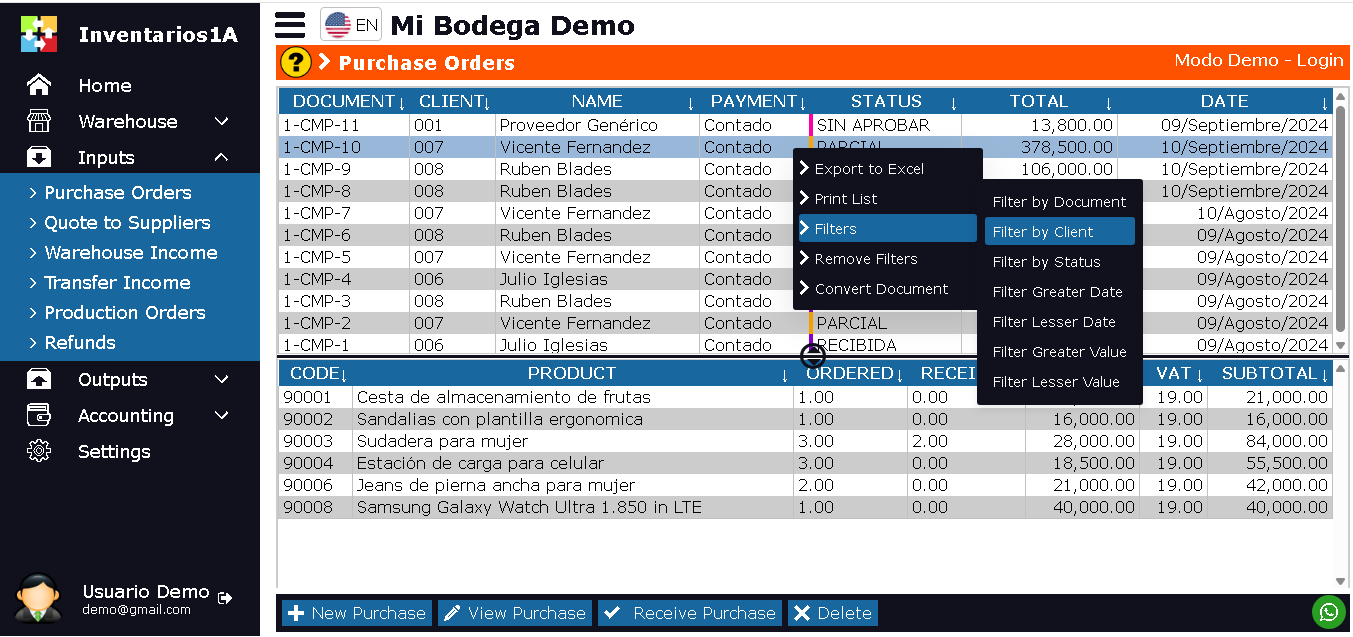
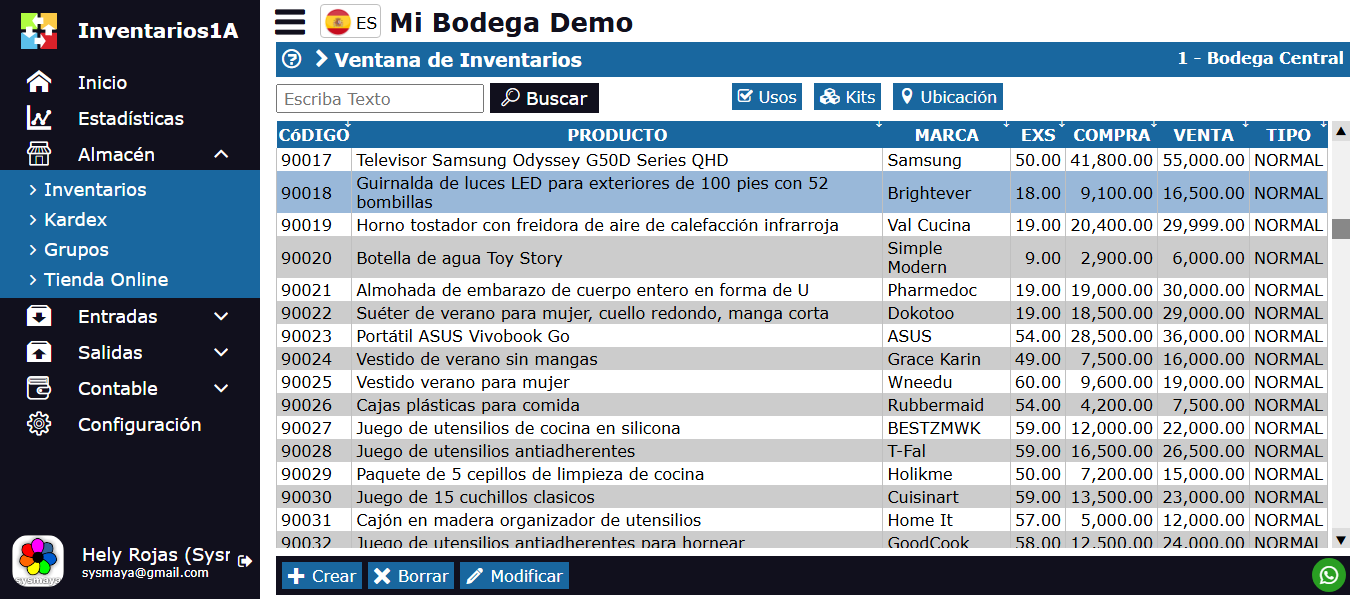
The Purchase Order List window in Inventories1A is designed to display all purchase request documents generated by the company. This window is divided into 2 sections:
- Upper Section: Displays a list of Purchase Orders, with document number, supplier name, status (e.g. Draft, Pending Approval, Approved), total value, and issue date.
- Lower Section: Displays all items requested in the selected order. Product code, name, requested quantity, estimated unit price, and total per item.
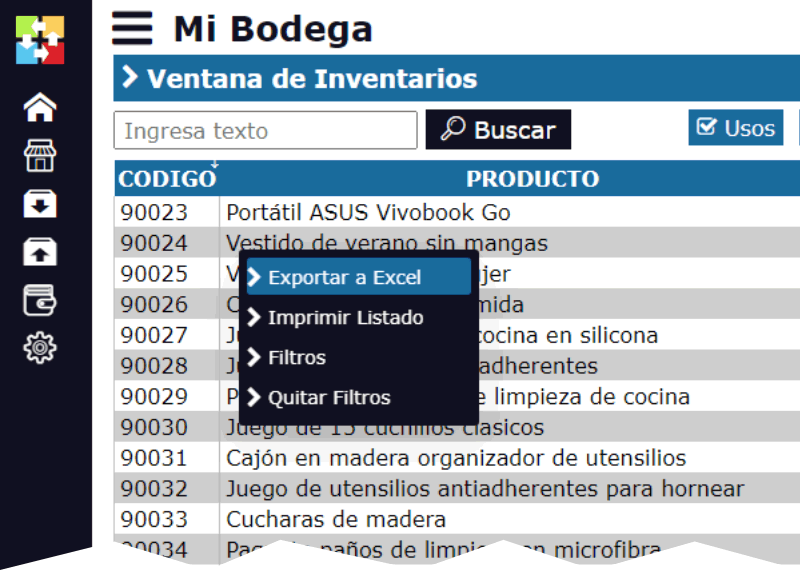
By right-clicking on the upper section, a pop-up menu appears with the options:
- Export to Excel: This option generates a downloadable Excel file with the list of purchase orders for analysis or sending to suppliers.
- Print: Allows printing the list or the specific format of the purchase order.
- Filters: Allows displaying only the orders according to the user's search criteria in Inventories1A. By date, supplier, status, requester, article, etc.
- Remove Filters
- Convert Document: Allows creating a new document from the selected order. The current document will not be modified. This is a powerful function of Inventories1A that allows, for example, duplicating an order for a new period or converting an approved purchase order directly into a Warehouse Receipt or a Purchase Invoice, streamlining the merchandise entry process.
At the bottom of the window, there are 4 main buttons of Inventories1A:
- New Purchase: This option allows creating a new Purchase Order, selecting the supplier and the necessary items from the catalog or from predefined needs lists.
- View Purchase: Opens the purchase order in Edit mode (if it's a draft) or in Consultation mode (if it's already approved), allowing reviewing all its details.
- Receive Purchase: This option appears if we select approved purchases that have not been fully received. Here, we open a window where we can enter the purchased items to the warehouse partially or totally.
- Delete: Deletes the selected Purchase Order. In Inventories1A, only documents that are in the Draft state and have not initiated any approval flow or derived into other documents (such as receipts) can be deleted.
Purchase Order Life Cycle in Inventories1A
The Purchase Order in Inventories1A follows a flow of states that reflects its progress in the procurement process:
DRAFT/NOT APPROVED: Initial state. The order has been created but has not been sent for approval. It can be modified, deleted, and the amounts are estimated. The inventory is not affected.
APPROVED/PARTIAL: The order has received all necessary authorizations and is ready to be sent to the supplier. It is the ideal state to convert it into a Receipt when the merchandise arrives. It is no longer modifiable in its main structure. The purchase order has already partially received some of the purchased products
CLOSED / RECEIVED: Final state. The order has been completely received (totally or partially) and settled with the supplier through invoices in Inventories1A. The purchase transaction is finalized, and the document is archived as history.